
iNaturalist for Beginners
What are the benefits of iNaturalist for beginners who want to record wildlife? We describe how you can easily join a global citizen science effort whilst adding meaning to your wildlife experience.
Using this powerful, free app, you can turn the wildlife photos you capture on our tours into valuable scientific data. Discover how simple it is to record, identify, and share your sightings, ensuring every trip you take with us contributes to biodiversity research.
Have you ever wondered what you can do to save the planet while travelling? Thanks to the world’s most powerful citizen science tool, iNaturalist, you can undoubtedly play a big part in making things better. Keep a record of the wildlife you see on tour, and you will be helping nature and the planet.
Every entry you make in iNaturalist contributes to a vast global resource that helps scientists understand the health of our environment.
It can sound daunting at first, but it really is easy when we break it down; all you need is a smartphone. If you can post a photo/message on Facebook, you have all the skills you need to use iNaturalist.
Here’s how to get started recording wildlife on our tours or anywhere.
Download the free iNaturalist app
Search your phone’s app store for iNaturalist. You may come across a thing called Seek by iNaturalist, which is a simplified version of the main app, but it has a long way to go and is not as good as its parent app.
Like most phone apps, you’ll need to create a username and password so the app can separate your sightings from the 4.3 million other users. Work your way through the setup process, and then you’ll be ready to go!
Have a play around in the app, look stuff up, and if you like, record your first sighting.
How to create your first sighting on iNaturalist
Step one is finding something you want to identify. Flowers are easy, so they can be a good option to start with. The instructions below are for Android, but are similar for iPhone. There is no need to rush; enjoy the experience.
- Open the app On Android, tap the '+' symbol in the bottom right corner. iPhone has a camera symbol with Observe over it.
- Now take a photo of your chosen sighting and tap the yellow circle that appears. A new screen pops up that may look daunting. Don’t worry, everything is going to plan.
- At the top, you’ll see a mini version of the photo you just took. Under it will be a question mark with the words What did you see? Below that, there will be other information your phone has automatically provided, e.g. date, time, location and more. For the time being, tap What did you see?
- iNaturalist will now search its global database for information about flowers that grow in your location. In a few seconds, a selection of suggested plants in your area will appear. The best thing to do now is find a picture that looks similar to your photo (you may need to be a wee bit creative here), then tap the two arrows going left-right.
- Next, you will come to a comparison screen with your photo at the top and pictures of the plant you’ve chosen at the bottom. You can scroll left and right on the bottom screen to view the images, and if everything looks correct, click the arrow at the top left of the screen to return to the previous screen. (If you’re not happy with your selection, you can try another one by repeating the procedure until you get what you’re looking for.) You’ll see a tick box next to the left-right arrows: tap it.
- This takes you back to the ID screen, where you’ll see another green tick circle at the bottom. Take a deep breath, you’re about to become a global citizen scientist! Tap the tick circle and you’re done! Yay! You’ve helped save the planet.
Now you’ll be taken back to your home screen — titled My Observations — where you’ll see your photo, hopefully the first of many on that screen in the coming months and years. And don’t worry if you make a mistake, you can delete the observation and start all over again.
Need some more help? Here’s a link to iNaturalist’s support page with some great little video tutorials.
Next steps
After you’ve made your first sighting, you could leave it at that and move on to your next sighting, but there is also a whole new iNaturalist world within the app to discover!
Remember those 4.3 million people you shared your sighting with? They will help confirm your identification. Next time you look at your home screen, you might see a little red tag with 'RG' over your photo. RG means Research Grade. This means that another person has confirmed your sighting.
You can go back into the sighting — by tapping the photo — and find out why it’s been assigned the RG status! You can even thank the person who helped you. There’s so much more to learn — you’re just scratching the surface — but here’s a little example to give you an idea of how iNaturalist helped me.
How iNaturalist helped me identify an endangered plant
Yesterday, using iNaturalist, I observed a flower just beginning to bloom near where I live. For my observation, I snapped four photos: a close-up, a shot of the flower and leaves, the entire plant and a side view.
HINT: You’ll discover that you can load multiple photos into your sighting – the more info you give the app, the better the result. Here are my photos:
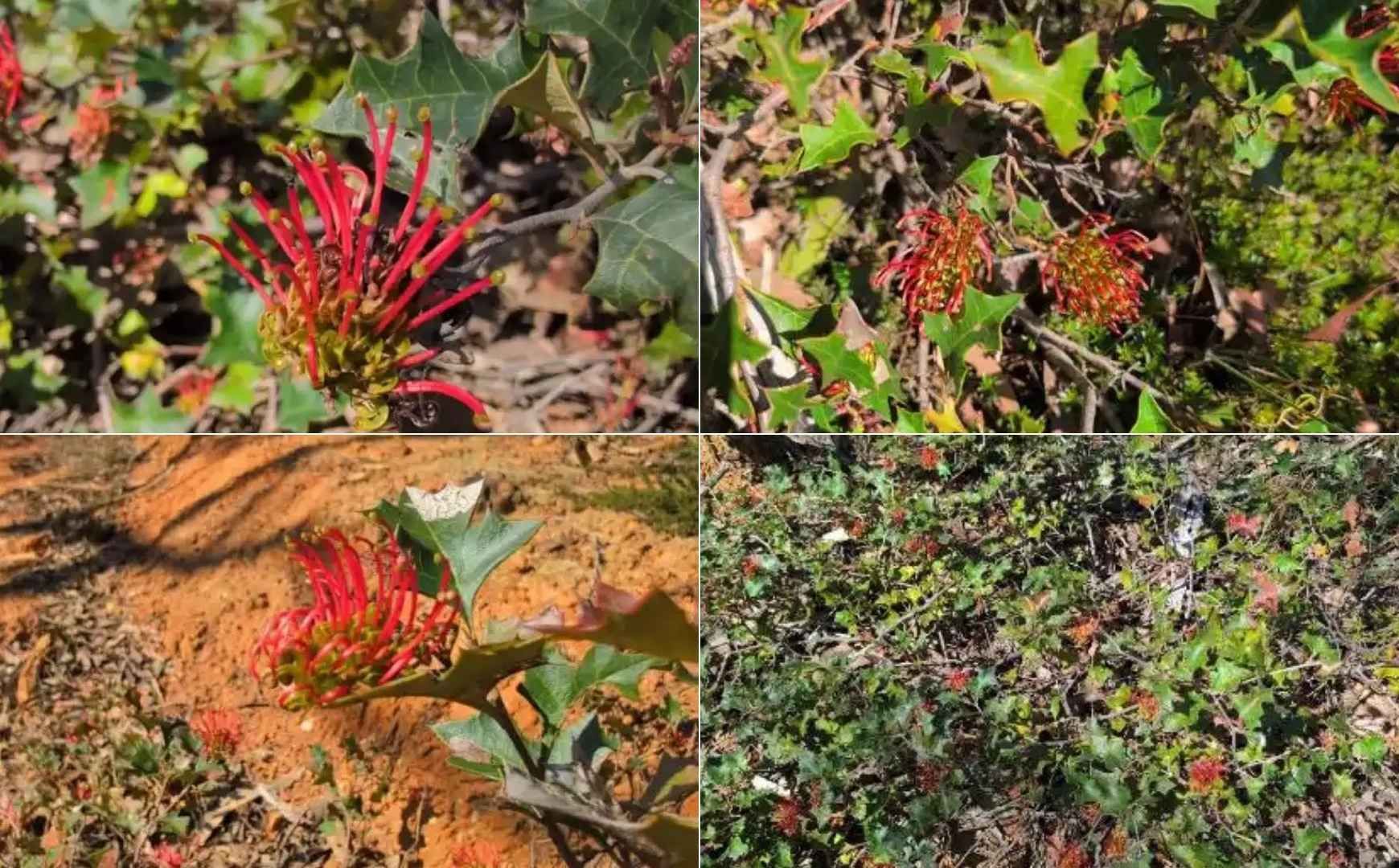
Then I asked iNaturalist what the flower was, ie. I tapped the “What did you see?” option. Based on my location, the app came up with a few suggestions that I scrolled through until I found something that looked similar to my photos. I chose Brisbane Ranges Grevillea, tapped the button, and my observation appeared, complete with the full species name Grevillea steiglitziana.
I then tapped the arrow (circled in the screenshot below), which took me to lots of information about this plant, including a map of observations made by other iNaturalist users.
When I opened the map, I discovered that my sighting was of a plant that is found exclusively near where I live and nowhere else ON EARTH! I had to lie down to recover.
This is what the sighting looked like on the app:
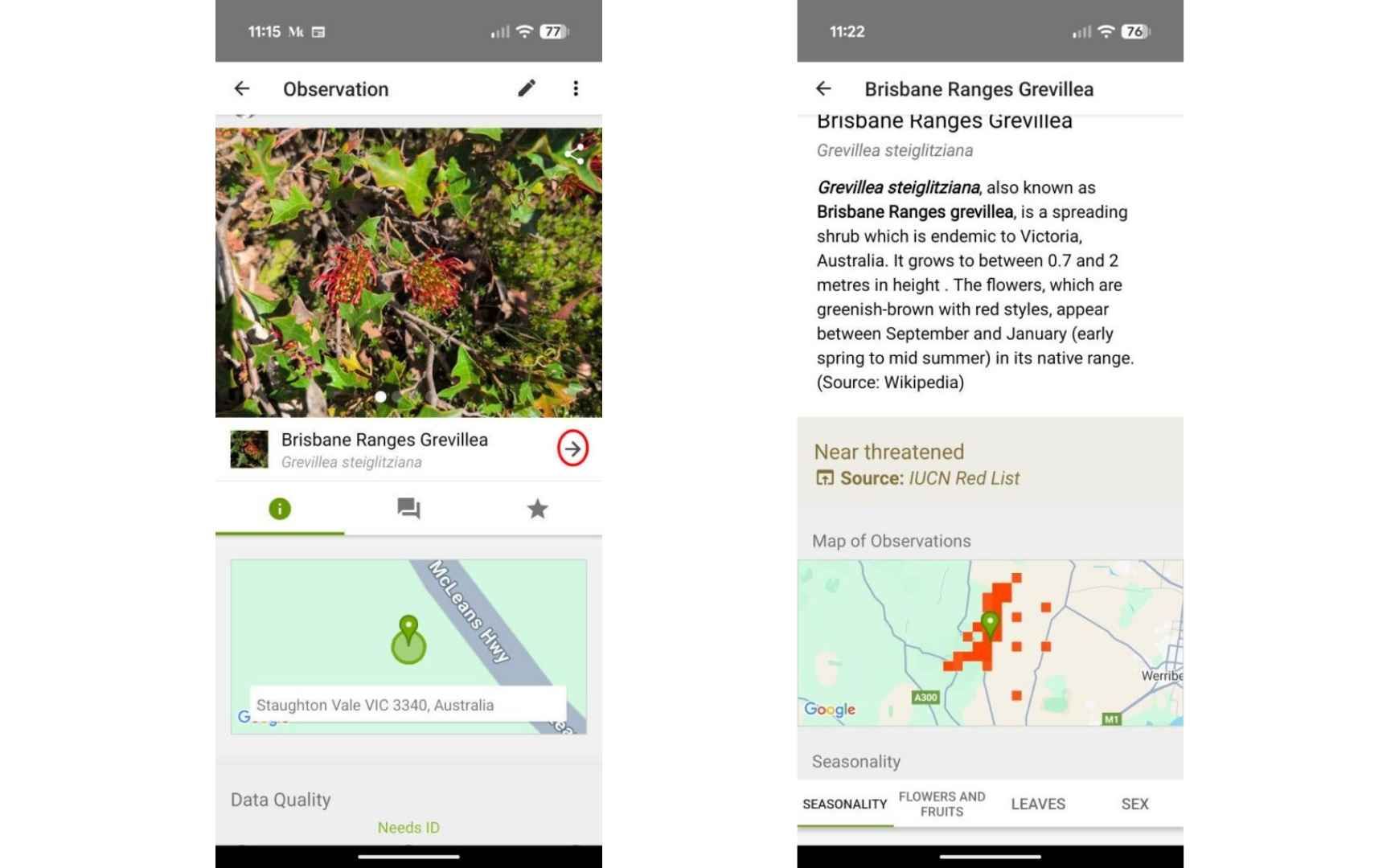
Notice that this plant is considered to be “Near threatened” and on the IUCN’s Red List , which means the United Nations International Union for the Conservation of Nature is concerned about its future. Today I rechecked the app, and another user has agreed with my identification, so it’s now Research Grade. I’m pretty damn happy about that, and so will you be when you get on board. iNaturalist is a global powerhouse helping us protect nature.
Written by
Roger Smith
Roger Smith is the author of Australian Geographic’s Treading Lightly column. Roger has a long background in nature conservation, citizen science, wildlife tourism and energy-efficient housing. Now, as Director of Conservation Travel at Australian Geographic Travel, his role is to oversee citizen science activities, implement a climate-action plan and help expand the Conservation Travel portfolio.
Nov 19, 2025
Read More
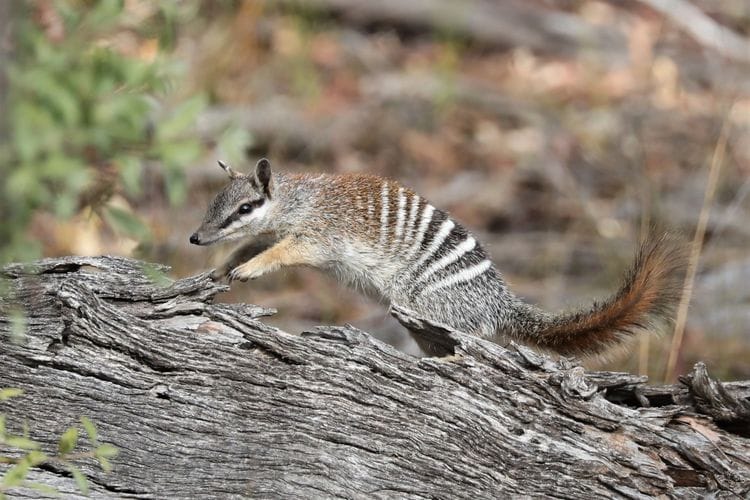
Must-See Western Australia Wildlife: Link Your Adventure
Iconic is the only way to describe Western Australia’s coastal wildlife. Where can you see Numbats, Orcas, Whale sharks and Rock-wallabies?
Why Our Citizen Science Tours Are Getting Rave Reviews
We investigated why our citizen science tours are getting 5 star reviews: it's all down to our guest's desire to give back to nature (and to meticulous pre tour planning)